Short answer
In the Cloudflare dashboard, select your domain, go to DNS > Records and select Add record. SPF, DKIM and DMARC are all TXT records: enter @ (the root), selector._domainkey or _dmarc in Name, paste the value into Content and select Save. You don't need quotation marks; Cloudflare adds them when you save.
The Cloudflare-specific trap is the proxy. Any CNAME an email service asks for, such as a return path, link tracking or a DKIM CNAME, must be set to DNS only (grey cloud), not Proxied (orange cloud). A proxied record answers with Cloudflare's own IP addresses instead of the target, so the email service's check fails. TXT and MX records are always DNS only.
Before you start: is Cloudflare answering for the domain?
Records you add in Cloudflare only count if the domain's nameservers are Cloudflare's. If you registered the domain elsewhere and moved its nameservers to Cloudflare, add records in Cloudflare, not at the registrar. Check from a terminal:
dig +short NS example.com

# Cloudflare's nameservers end in ns.cloudflare.com, for example:
# ada.ns.cloudflare.com.
# bob.ns.cloudflare.com.
Also check whether Email Routing is on for the domain. If it is, Cloudflare has already added MX records, an SPF record and a DKIM record for it, and it locks them so they can't be edited by accident. That matters for SPF and MX below.
Add a TXT record (SPF, DKIM or DMARC) in Cloudflare
Step 1: Open DNS records
In the Cloudflare dashboard, select your account and domain, then go to DNS > Records. Search the list for an existing TXT record starting v=spf1 and a record named _dmarc first: if either exists, you'll edit it instead of adding another.
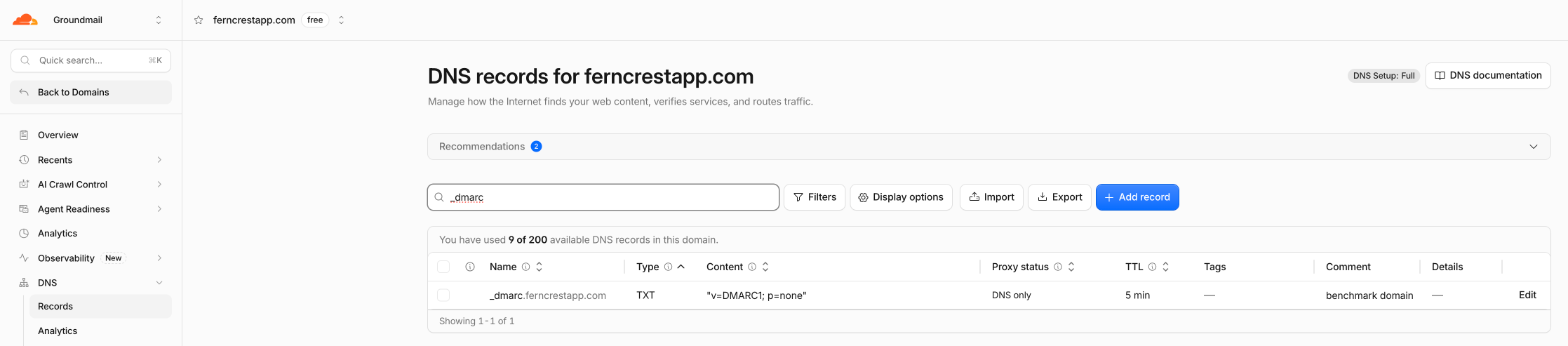
Step 2: Select Add record and choose TXT
Select Add record and choose TXT as the Type. There's no separate SPF type; SPF is a TXT record whose content starts with v=spf1.
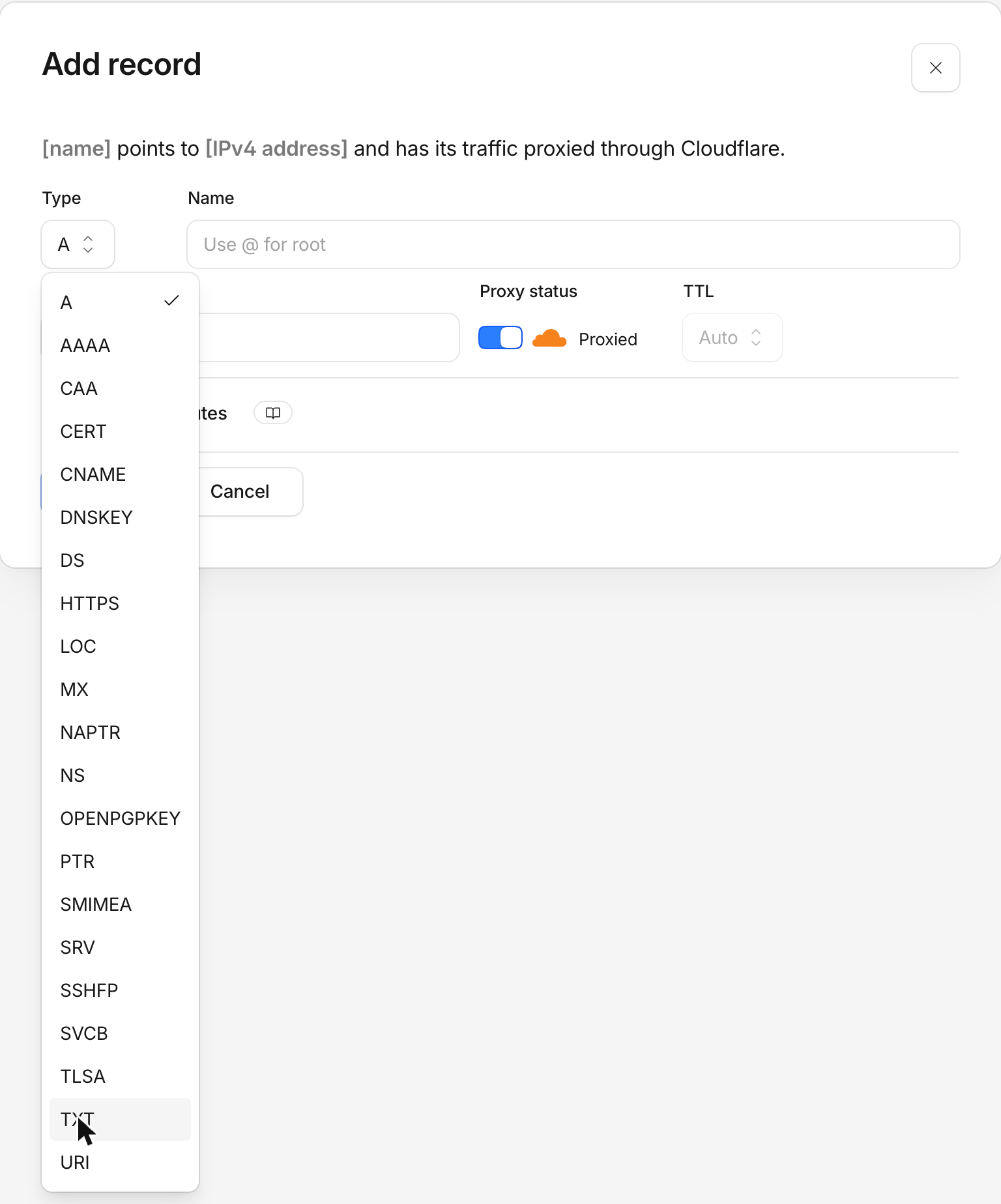
Step 3: Enter the Name
Use @ for the root domain. For other records, enter the name without your domain, as Cloudflare's own examples do (_dmarc, google._domainkey). After you save, the record list shows the full name; check that it reads _dmarc.example.com and not the domain twice.
Step 4: Paste the Content
Paste the value into Content as one line. You can leave quotation marks out: for a new record saved without quotes, Cloudflare adds the double quotes itself. Don't paste a value with stray quotes in it (an opening quote with no closing one, or quotes in the middle); Cloudflare rejects inconsistent quotation marks. Leave TTL on Auto.
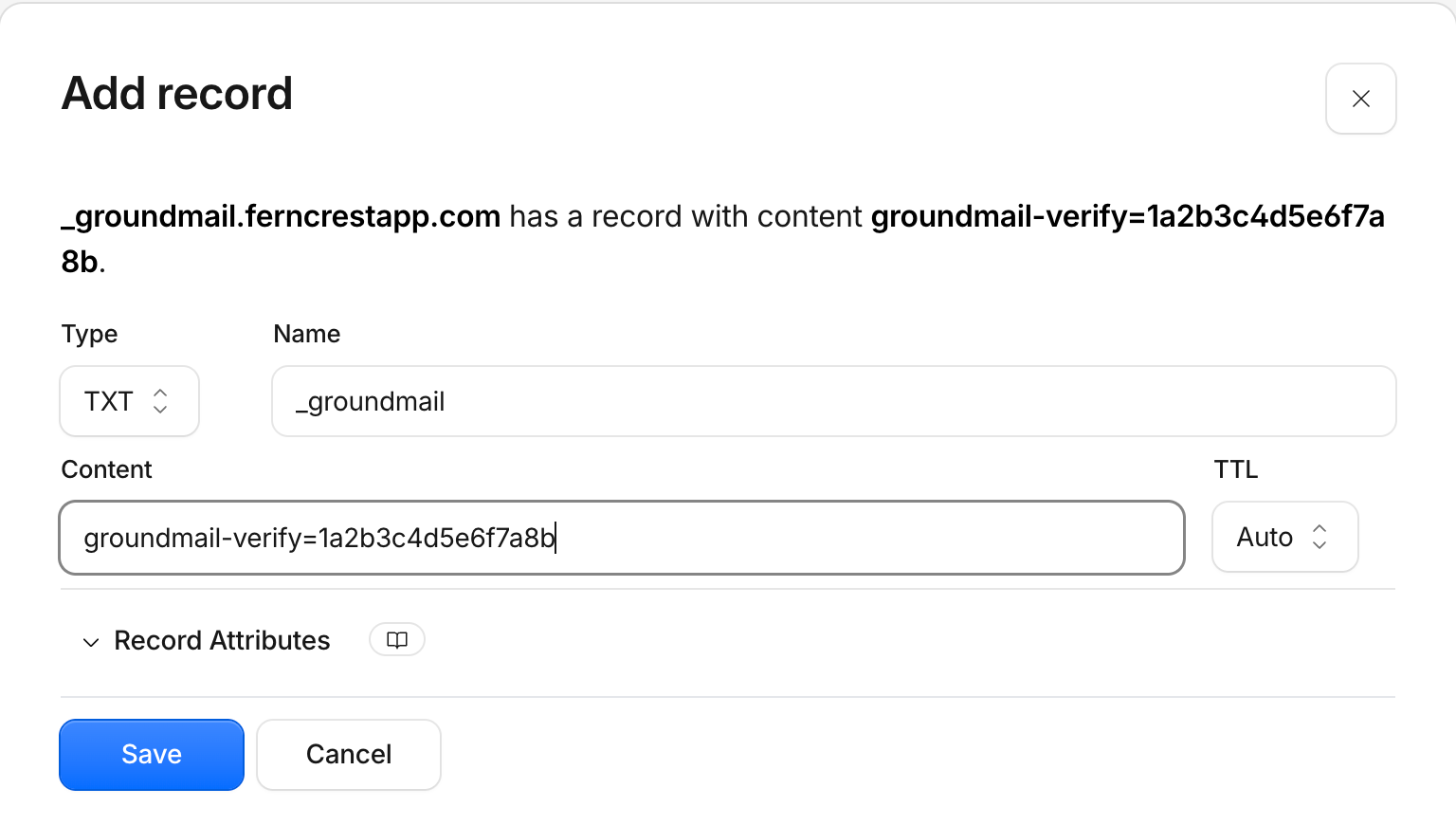
Step 5: Save
Select Save. There's no proxy option on TXT records, so there's nothing else to set. If you changed an existing record, resolvers that cached the old answer keep it until its TTL runs out, so give it a few minutes before you check.
Add a CNAME for email: DNS only, not proxied
Email services use CNAMEs for the return path (bounce) domain, for link and open tracking, and sometimes for DKIM. Cloudflare can proxy A, AAAA and CNAME records, and a proxied record no longer answers with your CNAME target; it answers with Cloudflare's anycast IP addresses. The email service looks for its own host name, doesn't find it, and the check fails. Cloudflare's own guidance is that DNS records used for email should be DNS only.
Step 1: Select Add record and choose CNAME
On DNS > Records, select Add record and choose CNAME as the Type.
Step 2: Enter the Name and Target
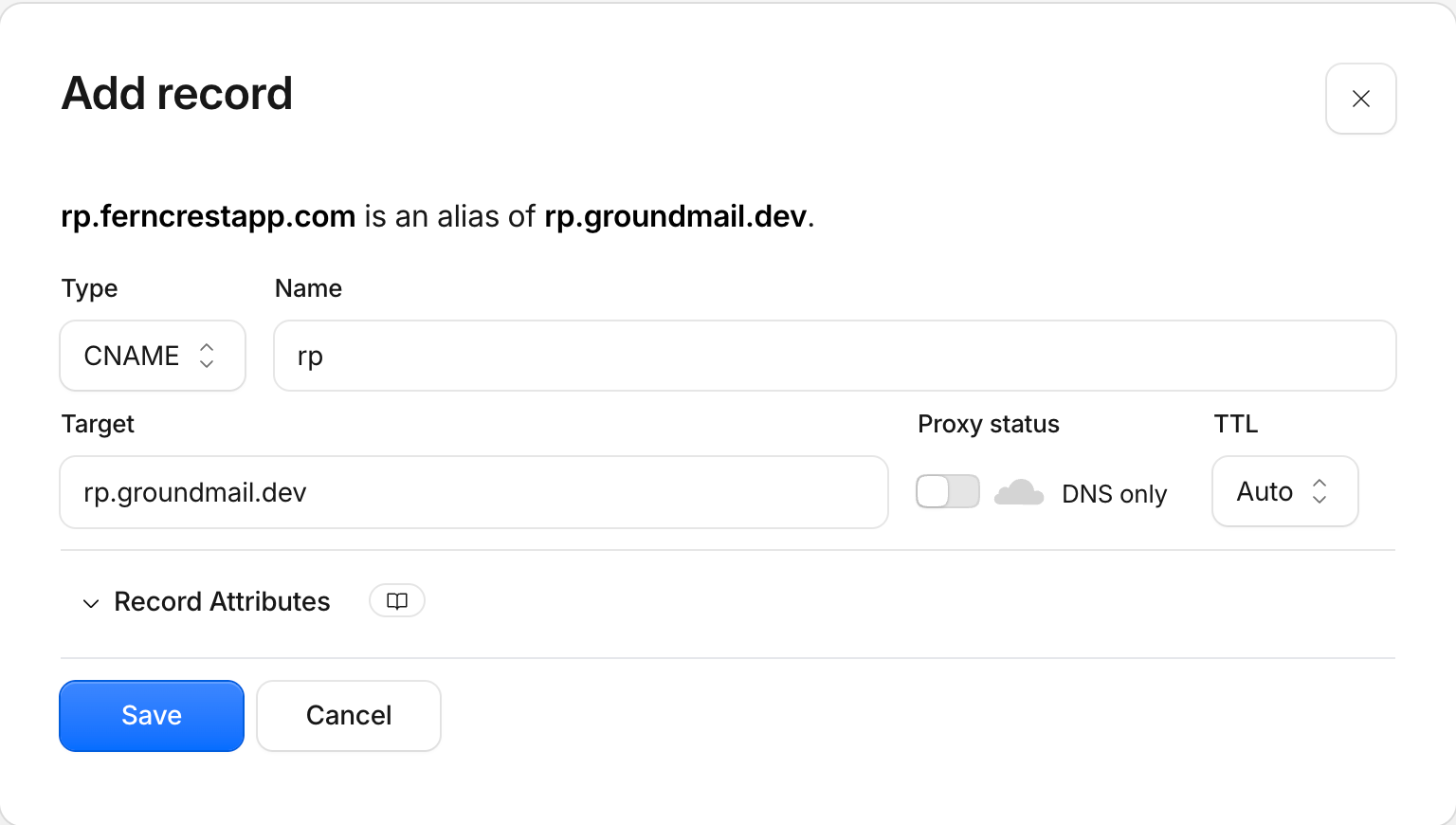
Enter the prefix your email service gives you in Name (for example rp, ps or s1._domainkey) and its host name in Target.
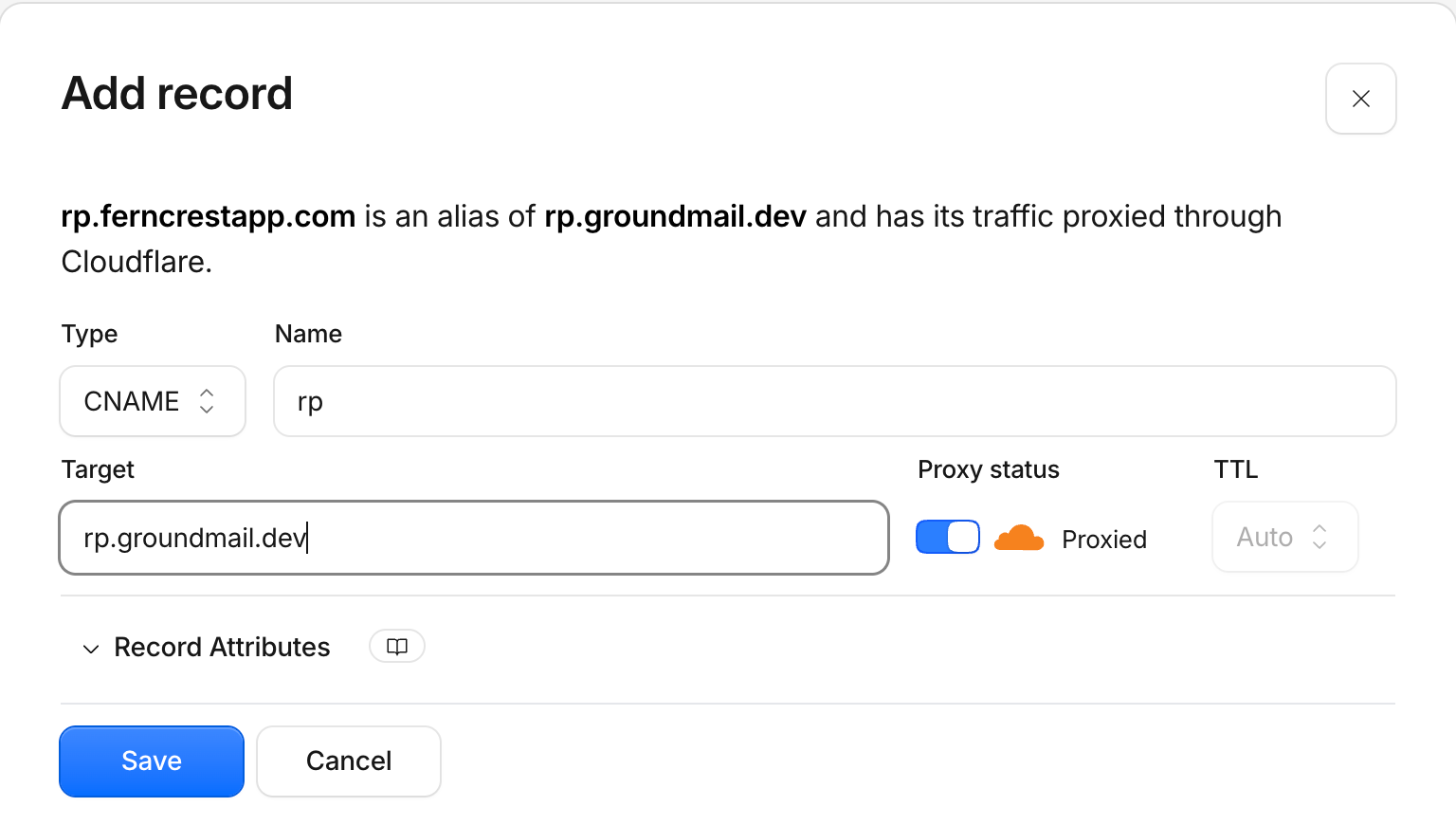
Step 3: Switch Proxy status to DNS only
Look at Proxy status before you save. A new CNAME starts out Proxied, with an orange cloud, so switch it off until it reads DNS only with a grey cloud. Do this on every mail CNAME.
Step 4: Make sure the record isn't flattened
CNAME flattening has the same effect as the proxy: Cloudflare answers with IP addresses instead of the CNAME. If the record shows a Flatten setting, leave it off, and if the zone's DNS settings have CNAME flattening for all CNAME records turned on, turn it off or the email service still won't see its target.
Step 5: Save, and fix any existing proxied mail CNAMEs
Select Save. Then scan the list for mail CNAMEs added earlier with an orange cloud: edit each one, switch it to DNS only and save.
Add an MX record in Cloudflare
Select Add record, choose MX, enter the Name (@, or a subdomain such as inbound), the Mail server host name and the Priority (lowest is tried first), then Save. MX records are always DNS only. The host name an MX record points to must also resolve without the proxy: if it's a name in your own zone, such as mail.example.com, that record has to be DNS only too.
If Email Routing is on, its MX records on the root are locked, and they can't coexist with another provider's MX records on the same name. Either put the new service's MX records on a subdomain, or turn Email Routing off for the domain before you change the root's MX records.
What to enter for each email record
| Record | Type | Name | Content or target (example) | Proxy status |
|---|---|---|---|---|
| SPF | TXT | @ | v=spf1 include:_spf.example-provider.com ~all | Always DNS only |
| DKIM key | TXT | selector._domainkey | v=DKIM1; k=rsa; p=MIIBIjANBgkq… | Always DNS only |
| DKIM, delegated | CNAME | selector._domainkey | A host name from your provider | DNS only |
| DMARC | TXT | _dmarc | v=DMARC1; p=none; rua=mailto:dmarc@example.com | Always DNS only |
| Return path | CNAME | The prefix your provider names, such as rp | A host name from your provider | DNS only |
| Link and open tracking | CNAME | The prefix your provider names | A host name from your provider | DNS only |
| Receiving mail | MX | @ or a subdomain | Mail server host name, plus a priority | Always DNS only |
Names are for example.com. For a subdomain such as mail.example.com, keep the subdomain in the name: _dmarc.mail, selector._domainkey.mail, and mail instead of @.
Cloudflare SPF: one record, and Email Routing's lock
A name can have only one SPF record; with two, SPF fails for every message. If Email Routing is on, the root already has v=spf1 include:_spf.mx.cloudflare.net ~all, and Cloudflare locks it. To add a sending service, open Email Routing for the domain, go to its Settings, find the SPF record under DNS records and select Unlock. Then edit the record in DNS > Records so it holds both includes:
v=spf1 include:_spf.mx.cloudflare.net include:_spf.example-provider.com ~allSPF is limited to 10 DNS lookups, including the ones nested inside each include. The SPF checker counts them.
Cloudflare DKIM: long keys are split for you
Paste a DKIM key into Content as one line, without quotes and without splitting it. A 2048-bit key is about 400 characters, longer than the 255 a single DNS text string can hold, so Cloudflare stores it as two or more strings. That's why the saved record can show a double quote in the middle of the key: it's expected, and receivers join the strings back together. Email Routing's own DKIM key uses the selector cf2024-1, so it sits alongside your sending service's key without clashing.
Cloudflare DMARC: one record, and DMARC Management
Add one TXT record named _dmarc, starting at p=none with a rua= address so you get reports, and tighten it to quarantine and reject once the reports show your mail passing. If a _dmarc record exists, edit it; two DMARC records make receivers ignore both.
Cloudflare's DMARC Management (under Email > DMARC Management) collects those reports for you. When you turn it on, Cloudflare adds its own report address to the rua= tag of your existing record, so if you edit the record later, keep that address or the reports stop. It works for apex domains such as example.com, not for a subdomain set up as its own zone.
Check that the records work
# SPF: expect exactly one line starting "v=spf1"
dig +short TXT example.com @1.1.1.1

# DKIM: a long key comes back as several quoted strings, which is normal
dig +short TXT s1._domainkey.example.com @1.1.1.1

# DMARC: expect exactly one "v=DMARC1" line
dig +short TXT _dmarc.example.com @1.1.1.1

# Return path: expect your provider's host name, not an IP address
dig +short CNAME rp.example.com @1.1.1.1

# If the CNAME query is empty but this returns IPs, the record is proxied or flattened
dig +short rp.example.com @1.1.1.1

# MX
dig +short MX example.com @1.1.1.1Common mistakes in Cloudflare DNS
| Mistake | What happens | Fix |
|---|---|---|
| Mail CNAME left Proxied (orange cloud) | Resolves to Cloudflare IPs; the provider can't verify the return path or tracking domain | Edit the record and set DNS only |
| CNAME flattening on for the record or the zone | Same as proxied: IP addresses instead of the CNAME | Turn Flatten off for the record and zone-wide flattening off |
| A second SPF record next to Email Routing's | SPF permerror for every message | Unlock Email Routing's SPF record and merge both includes into it |
| New MX records on the root while Email Routing is on | They conflict with Email Routing's locked MX records | Use a subdomain for the new service, or turn Email Routing off first |
| Stray or unbalanced quotes in TXT content | Cloudflare rejects the record, or the value is wrong | Paste the value with no quotes and let Cloudflare add them |
Editing _dmarc and dropping Cloudflare's rua address | DMARC Management stops receiving reports | Keep the Cloudflare address in rua= alongside yours |
| Records added at the registrar instead of Cloudflare | Nothing changes in public DNS | Add them in Cloudflare, which answers for the domain |
Using Groundmail? Your records in Cloudflare
When you add a domain to Groundmail, you get the records below, written here the way Cloudflare's Name field takes them for example.com. Both CNAMEs must be DNS only: the return path so bounces and SPF alignment work, and the tracking host so tracked links and the open pixel can be served over HTTPS from your domain.
| Purpose | Type | Name in Cloudflare | Value (example) | Proxy status |
|---|---|---|---|---|
| Ownership | TXT | _groundmail | groundmail-verify=1a2b3c… | Not applicable |
| DKIM | TXT | ss-abc123._domainkey | v=DKIM1; k=rsa; p=MIIBIjANBgkq… | Not applicable |
| Return path | CNAME | rp | rp.groundmail.dev | DNS only |
| SPF | TXT | @ | v=spf1 include:spf.groundmail.dev ~all, merged into any SPF record you already have | Not applicable |
| DMARC | TXT | _dmarc | v=DMARC1; p=none; to start, unless the domain already has a DMARC record | Not applicable |
| Open and click tracking (optional) | CNAME | ps | track.groundmail.dev | DNS only |
| Receiving (optional) | MX | @, or the subdomain you receive on | mx.groundmail.dev, priority 10 | Not applicable |
For a domain added as example.com. The token, the DKIM selector and the key are unique to your domain, so copy the real values from your dashboard. Ownership, DKIM, return path and SPF are needed to verify; DMARC is recommended. The tracking record appears only when open or click tracking is on, and the MX record only when receiving is on.
The dashboard shows full host names, such as _groundmail.example.com. Your DNS host adds the domain itself, so type only the part before it. If you added a subdomain such as mail.example.com, keep the subdomain in the name: _groundmail.mail, ss-abc123._domainkey.mail, rp.mail, mail for SPF and _dmarc.mail.
The quickest way on Cloudflare is to let Groundmail write them: save a Cloudflare API token under Integrations and select Apply DNS (Cloudflare), which adds every record as DNS only and merges SPF into the record you already have. To add them by hand instead, copy the real values from any of these:
- Dashboard: open Domains, select the domain, then the DNS records tab. Each record has a copy button, and selecting a row shows the full host and value.
- CLI:
groundmail domains get example.comprints the domain with itsrecords(install withnpm install -g groundmail-cli). - API:
GET /domains/{id}returns the samerecordslist. See the domains docs.
Then select Verify DNS on the domain's page. Home reads your public DNS and names any record it can't find yet, and the DNS records tab marks each record and keeps re-checking while the domain is pending, so you can see which one is missing instead of waiting and guessing. Verifying also switches signing to your own domain, so messages carry a DKIM signature for example.com and DMARC can pass.
New to Groundmail? It sends your app's sign-in codes, password resets and receipts, and the free plan includes 3,000 emails a month with no time limit. Create a free account, add your domain, and the records above are generated for you.
Frequently asked questions
Should email DNS records be proxied in Cloudflare?
No. TXT and MX records can't be proxied at all, and every CNAME an email service gives you (return path, tracking, DKIM) should be DNS only. A proxied CNAME answers with Cloudflare IP addresses instead of the target, which breaks the service's checks.
How do I add a DMARC record in Cloudflare?
Go to DNS > Records, select Add record, choose TXT, enter _dmarc as the Name and a value such as v=DMARC1; p=none; rua=mailto:dmarc@example.com as the Content, then Save. Edit the existing _dmarc record instead if there is one.
How do I add a DKIM record in Cloudflare?
Add a TXT record named selector._domainkey with your provider's key as the Content, or a CNAME set to DNS only if your provider gives you a target. Paste the key as one line; Cloudflare splits long keys into several strings for you.
Why does my DKIM record show a quote in the middle in Cloudflare?
A DNS text string holds at most 255 characters, so a longer value is stored as several strings. Cloudflare's docs call this expected, and receivers join the strings back together before checking the key.
I use Cloudflare Email Routing. How do I add another service to SPF?
Unlock the SPF record in Email Routing's settings, then edit it in DNS > Records so it includes both: v=spf1 include:_spf.mx.cloudflare.net include:your-provider ~all. Don't add a second SPF record.
Do I need quotation marks around TXT values in Cloudflare?
No. If you save a new TXT record without quotes, Cloudflare adds them. Avoid partial or stray quotes, which Cloudflare rejects.
Sources
Facts on this page about other companies' products, prices and policies come from these public pages. They change, so check them before you decide.
- Cloudflare: Manage DNS records
- Cloudflare: DNS record types (TXT quotes)
- Cloudflare: Proxy status
- Cloudflare: Troubleshooting email issues
- Cloudflare: Cannot verify a domain with CNAME
- Cloudflare: DNS FAQ (double quote in a TXT value)
- Cloudflare: Email Routing domain configuration
- Cloudflare: Enable DMARC Management