Short answer
In Namecheap, go to Domain List, select Manage next to the domain and open the Advanced DNS tab. SPF, DKIM and DMARC are all TXT records: under Host Records, select Add New Record, choose TXT Record, enter the host and the value, and save. MX records live further down, under Mail Settings, which has to be set to Custom MX before Namecheap keeps your own MX records.
In Host, enter @ for the root domain or only the part before your domain, such as _dmarc or s1._domainkey: Namecheap adds the domain itself, even when your provider shows the full name. Save each record with its green check mark or Save All Changes. Namecheap says new records usually work within 30 minutes. Keep one SPF record per host; if one exists, add your provider's include: to it.
Before you start: is the domain on Namecheap DNS?
You can add records in Advanced DNS only while the domain uses Namecheap's BasicDNS, PremiumDNS or FreeDNS nameservers. If it's pointed at Namecheap's web hosting, Namecheap says the records go in cPanel instead. If it uses another company's nameservers, such as Cloudflare or your web host, add them there; Namecheap's own records then have no effect.
dig +short NS example.com

# Namecheap BasicDNS answers with:
# dns1.registrar-servers.com.
# dns2.registrar-servers.com.
Have the records from your email service ready: type, host and value for each. Copy them with the service's copy buttons rather than retyping them.
Add a TXT record (SPF, DKIM or DMARC) in Namecheap
Step 1: Open Advanced DNS
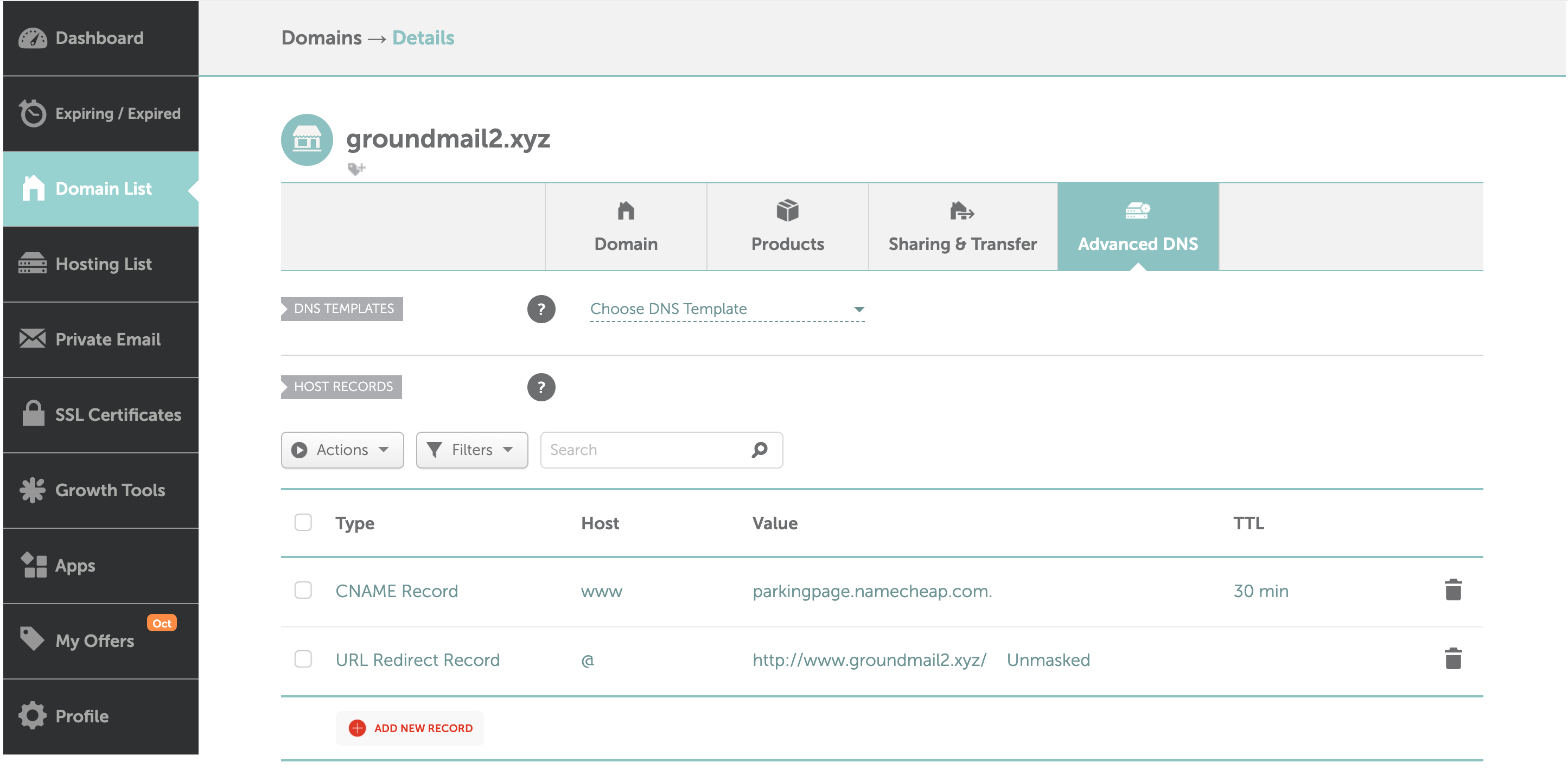
Sign in to Namecheap, select Domain List in the left sidebar and select Manage next to the domain. Open the Advanced DNS tab at the top of the page. The Host Records section lists what the domain already has; look for an existing TXT record starting v=spf1 or a host named _dmarc before adding anything.
Step 2: Select Add New Record and choose TXT Record
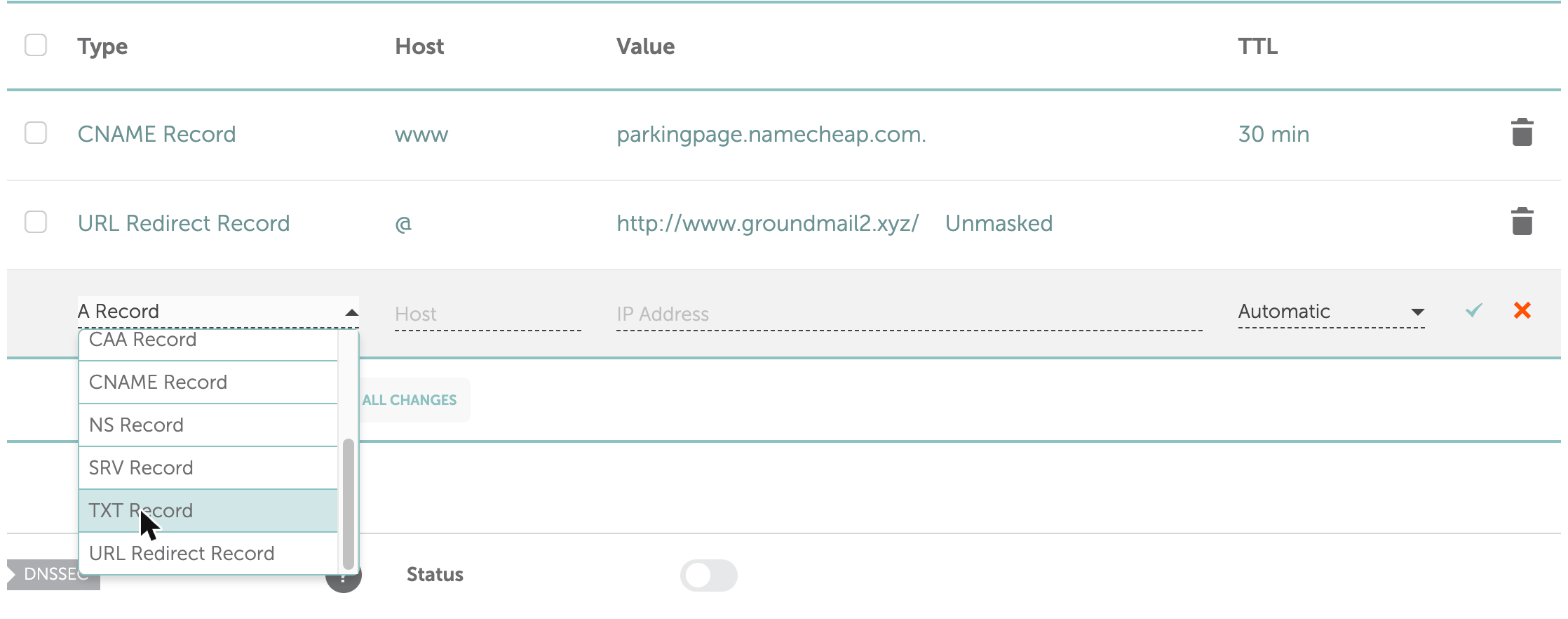
In Host Records, select Add New Record and choose TXT Record as the type. Namecheap adds SPF, DKIM and DMARC all as TXT records; there's no separate type for them.
Step 3: Enter the Host without your domain
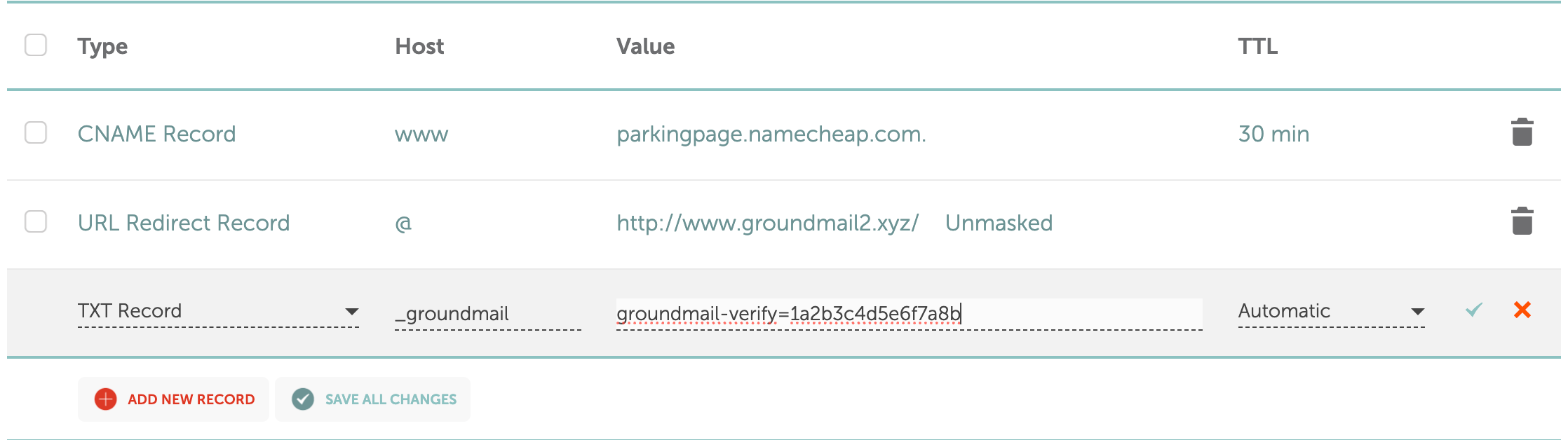
Enter @ for the root domain. For anything else, enter only the part before your domain: _dmarc for _dmarc.example.com, s1._domainkey for s1._domainkey.example.com. Namecheap's DNS adds the domain name automatically, and its help says to enter the host this way even if your provider asks for the full name. Typing _dmarc.example.com would publish the record at _dmarc.example.com.example.com.
Step 4: Paste the Value and leave TTL on Automatic
Paste the value exactly as your provider gives it, on one line and without surrounding quotation marks. Namecheap supports both 1024-bit and 2048-bit DKIM keys. Leave TTL on Automatic unless you have a reason to change it.
Step 5: Save the record
Select the green check mark next to the new record, or Save All Changes to save everything you've added.
Step 6: Give it about 30 minutes, then check
Namecheap says new host records normally take about 30 minutes to work. Check them with the commands in Check that the records work before you press verify at your email service.
How to add an MX record in Namecheap
MX records aren't added under Host Records. They live in the Mail Settings section of the same Advanced DNS tab, and Namecheap only keeps MX records you enter yourself while that section is set to Custom MX.
Step 1: Scroll to Mail Settings
On the Advanced DNS tab, scroll down to Mail Settings. Note what it's set to now: if it's Namecheap's Email Forwarding or Private Email, that's where the domain's email currently goes.
Step 2: Choose Custom MX
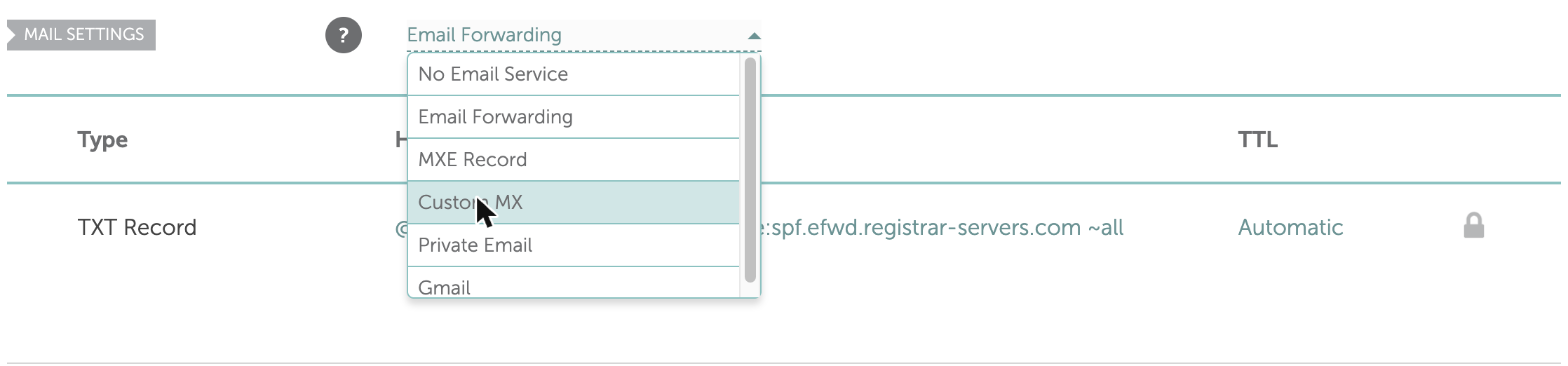
Choose Custom MX from the drop-down. Switching turns off Namecheap's own mail setup for the domain (Email Forwarding, Private Email or the Gmail option), and from then on mail follows only the MX records you list. If you still want that service on the root domain, add its MX records here too, or keep the old setting and receive the new mail on a different domain.
Step 3: Enter Host, Value and Priority
In the fields that appear, enter the Host (@ for mail to you@example.com, or a subdomain such as inbound), the mail server's host name as the Value, and the Priority: lower numbers are tried first. Namecheap's examples write the mail server with a trailing dot, such as mx.zoho.eu., and its help says mail server names should end with one. Never enter an IP address as an MX value.
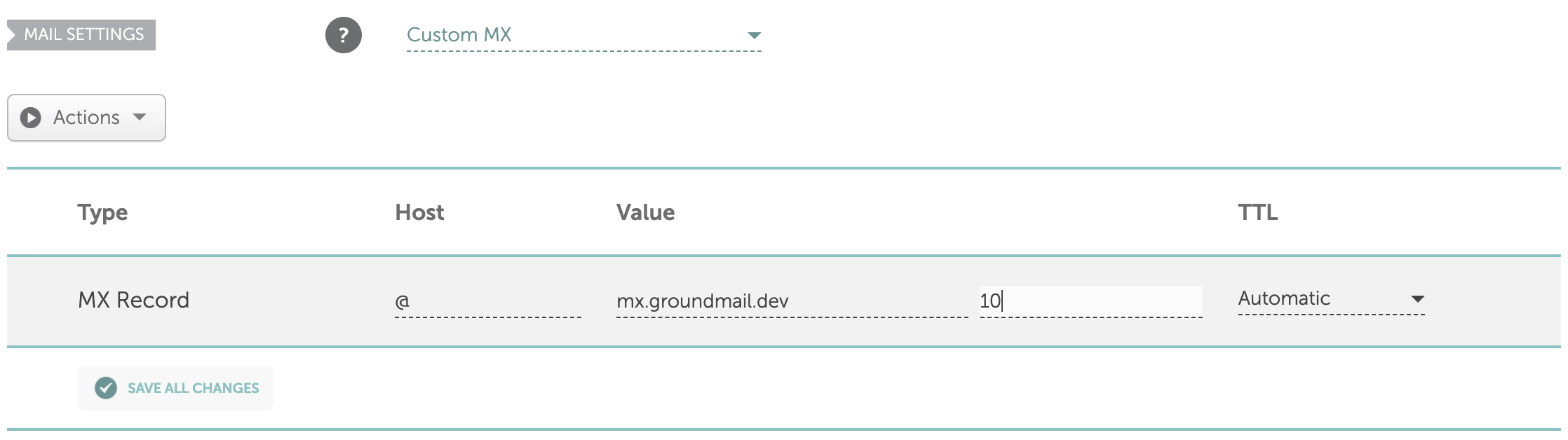
Step 4: Save, then remove leftovers
Select the green check mark or Save All Changes. Then make sure no old MX records are left on the same host pointing at a service you've stopped using; mail would still be sent to them.
What to enter for each email record
| Record | Where in Advanced DNS | Type | Host | Value (example) |
|---|---|---|---|---|
| SPF | Host Records | TXT Record | @ | v=spf1 include:_spf.example-provider.com ~all |
| DKIM key | Host Records | TXT Record | selector._domainkey | v=DKIM1; k=rsa; p=MIIBIjANBgkq… |
| DKIM, delegated | Host Records | CNAME Record | selector._domainkey | A host name from your provider |
| DMARC | Host Records | TXT Record | _dmarc | v=DMARC1; p=none; rua=mailto:dmarc@example.com |
| Return path or tracking | Host Records | CNAME Record | The prefix your provider names, such as rp | A host name from your provider |
| Receiving mail | Mail Settings (Custom MX) | MX | @ or a subdomain | Mail server host name, plus a priority |
Hosts are what you type in Namecheap for example.com. For a subdomain such as mail.example.com, keep the subdomain: _dmarc.mail, selector._domainkey.mail, and mail instead of @.
Namecheap SPF: one record per host
Namecheap's own help warns that several SPF records on the same host interfere with each other and stop email services working. Merge every sender into one record:
v=spf1 include:_spf.google.com include:_spf.example-provider.com ~allIf the domain uses Namecheap's free Email Forwarding, Namecheap adds an SPF record that forwarding needs (it includes spf.efwd.registrar-servers.com) and says it can't be deleted. Keep that include and add your sending service's include to the same record. If your account won't let you change it, send from a subdomain such as mail.example.com: a subdomain has its own SPF record, separate from the root's.
SPF also allows at most 10 DNS lookups, counting the includes inside each include. The SPF checker counts them for you.
Namecheap DKIM
Add the key as a TXT Record with Host selector._domainkey, or a CNAME Record if your provider gives you a target instead of a key. Paste a TXT key as one line, without quotes and without splitting it: a 2048-bit key is about 400 characters, and DNS stores it as several strings that receivers join back together. If you use Namecheap Private Email too, it has its own selector (privateemail._domainkey on newer subscriptions), and the two keys live side by side.
Namecheap DMARC
Add one TXT Record with Host _dmarc. Start with v=DMARC1; p=none; plus a rua= address you read, so reports show every service sending as your domain, then tighten the policy to quarantine and reject once they're clean. If _dmarc already exists, edit it; two DMARC records make receivers ignore both. The SPF, DKIM and DMARC guide has the rollout plan.
Namecheap CNAME
Choose CNAME Record, enter the prefix in Host and the target host name in Value. A CNAME blocks every other record on the same host, so remove any A, URL redirect or other record there first. Don't put a CNAME on @: Namecheap warns it can break the domain's MX records and with them your email.
Check that the records work
# SPF: expect exactly one line starting "v=spf1"
dig +short TXT example.com @1.1.1.1

# DKIM: use the selector from your provider
dig +short TXT s1._domainkey.example.com @1.1.1.1

# DMARC: expect exactly one "v=DMARC1" line
dig +short TXT _dmarc.example.com @1.1.1.1

# MX: expect your mail servers with their priorities
dig +short MX example.com @1.1.1.1

# Straight from Namecheap's nameserver, before caches catch up
dig +short TXT _dmarc.example.com @dns1.registrar-servers.com

# Doubled name? This should return nothing
dig +short TXT _dmarc.example.com.example.com @1.1.1.1
On Windows, nslookup -type=MX example.com 1.1.1.1 and nslookup -type=TXT _dmarc.example.com 1.1.1.1 do the same job.
Common mistakes in Namecheap DNS
| Mistake | What happens | Fix |
|---|---|---|
| MX records added while Mail Settings isn't Custom MX | Namecheap doesn't keep them; mail still goes to the old setup | Switch Mail Settings to Custom MX and enter the full MX set |
| Switching to Custom MX without re-adding the mailbox provider's MX | Mail to existing mailboxes stops | Add every MX record you still need, or use a subdomain for the new service |
| Full host name typed in Host | The record lands at _dmarc.example.com.example.com | Enter only the part before your domain |
Two SPF records on @ | SPF fails for every message | Merge them into one v=spf1 record |
| Record added but never saved | It never publishes | Select the green check mark or Save All Changes |
| CNAME on a host that already has another record | The records conflict and one of them stops working | Remove the other record first |
| Records added in Namecheap while the nameservers point elsewhere | Nothing changes in public DNS | Add them at the DNS host your nameservers name, or in cPanel for Namecheap hosting |
Using Groundmail? Your records at Namecheap
When you add a domain to Groundmail, you get the records below. Here they are written the way Namecheap's Host field wants them for example.com. Add the TXT and CNAME records under Host Records; the MX record, only if you receive mail with Groundmail, goes under Mail Settings set to Custom MX.
| Purpose | Type | Host in Namecheap | Value (example) |
|---|---|---|---|
| Ownership | TXT | _groundmail | groundmail-verify=1a2b3c… |
| DKIM | TXT | ss-abc123._domainkey | v=DKIM1; k=rsa; p=MIIBIjANBgkq… |
| Return path | CNAME | rp | rp.groundmail.dev |
| SPF | TXT | @ | v=spf1 include:spf.groundmail.dev ~all, merged into any SPF record you already have |
| DMARC | TXT | _dmarc | v=DMARC1; p=none; to start, unless the domain already has a DMARC record |
| Open and click tracking (optional) | CNAME | ps | track.groundmail.dev |
| Receiving (optional) | MX | @, or the subdomain you receive on | mx.groundmail.dev, priority 10 |
For a domain added as example.com. The token, the DKIM selector and the key are unique to your domain, so copy the real values from your dashboard. Ownership, DKIM, return path and SPF are needed to verify; DMARC is recommended. The tracking record appears only when open or click tracking is on, and the MX record only when receiving is on.
The dashboard shows full host names, such as _groundmail.example.com. Your DNS host adds the domain itself, so type only the part before it. If you added a subdomain such as mail.example.com, keep the subdomain in the name: _groundmail.mail, ss-abc123._domainkey.mail, rp.mail, mail for SPF and _dmarc.mail.
If the domain already has an SPF record, add include:spf.groundmail.dev to it rather than creating another. Copy the real values from any of these:
- Dashboard: open Domains, select the domain, then the DNS records tab. Each record has a copy button, and selecting a row shows the full host and value.
- CLI:
groundmail domains get example.comprints the domain with itsrecords(install withnpm install -g groundmail-cli). - API:
GET /domains/{id}returns the samerecordslist. See the domains docs.
Then select Verify DNS on the domain's page. Home reads your public DNS and names any record it can't find yet, and the DNS records tab marks each record and keeps re-checking while the domain is pending, so you can see which one is missing instead of waiting and guessing. Verifying also switches signing to your own domain, so messages carry a DKIM signature for example.com and DMARC can pass.
New to Groundmail? It sends your app's sign-in codes, password resets and receipts, and the free plan includes 3,000 emails a month with no time limit. Create a free account, add your domain, and the records above are generated for you.
Frequently asked questions
How do I add an MX record in Namecheap?
Open Domain List, select Manage next to the domain, open Advanced DNS and scroll to Mail Settings. Choose Custom MX, enter the Host (@ or a subdomain), the mail server as the Value and its Priority, then select the green check mark or Save All Changes.
Why did my Namecheap MX records disappear?
Namecheap only keeps MX records you enter while Mail Settings is set to Custom MX. With Email Forwarding, Private Email or another option selected, it manages the MX records itself.
What do I put in the Host field in Namecheap?
@ for the root domain, or only the part before your domain, such as _dmarc or s1._domainkey. Namecheap adds the domain automatically, so don't type it.
How do I add a DKIM record in Namecheap?
Under Host Records in Advanced DNS, select Add New Record, choose TXT Record, enter selector._domainkey as the Host, paste the key as the Value and save. Use a CNAME Record instead if your provider gives you a target rather than a key.
Where is Advanced DNS in Namecheap?
It's a tab on the domain's management page: Domain List, then Manage next to the domain. If you can't edit records there, the domain uses other nameservers or Namecheap web hosting, and the records belong at that DNS host or in cPanel.
How long do Namecheap DNS changes take?
Namecheap says new host records normally take about 30 minutes. Records that replace old ones can take longer, until the old record's TTL runs out in resolvers' caches.
Sources
Facts on this page about other companies' products, prices and policies come from these public pages. They change, so check them before you decide.
- Namecheap: How do I add TXT/SPF/DKIM/DMARC records for my domain?
- Namecheap: How do I set up host records for a domain?
- Namecheap: How to create a CNAME record for your domain
- Namecheap: How to set up Zoho email for my domain (Custom MX steps)
- Namecheap: How to set up free email forwarding
- Namecheap: Private Email DNS records on Namecheap nameservers